

Instead of entering a client’s myDATA codes yourself, you can invite the client to open their own TaxLayer account. They connect their own myDATA and bank, pay for their own plan, and you see their books the moment they accept.

Send the invitation

  1. Open Clients and press Link client account (admins only).
  2. Enter the client’s email and press Send invitation.
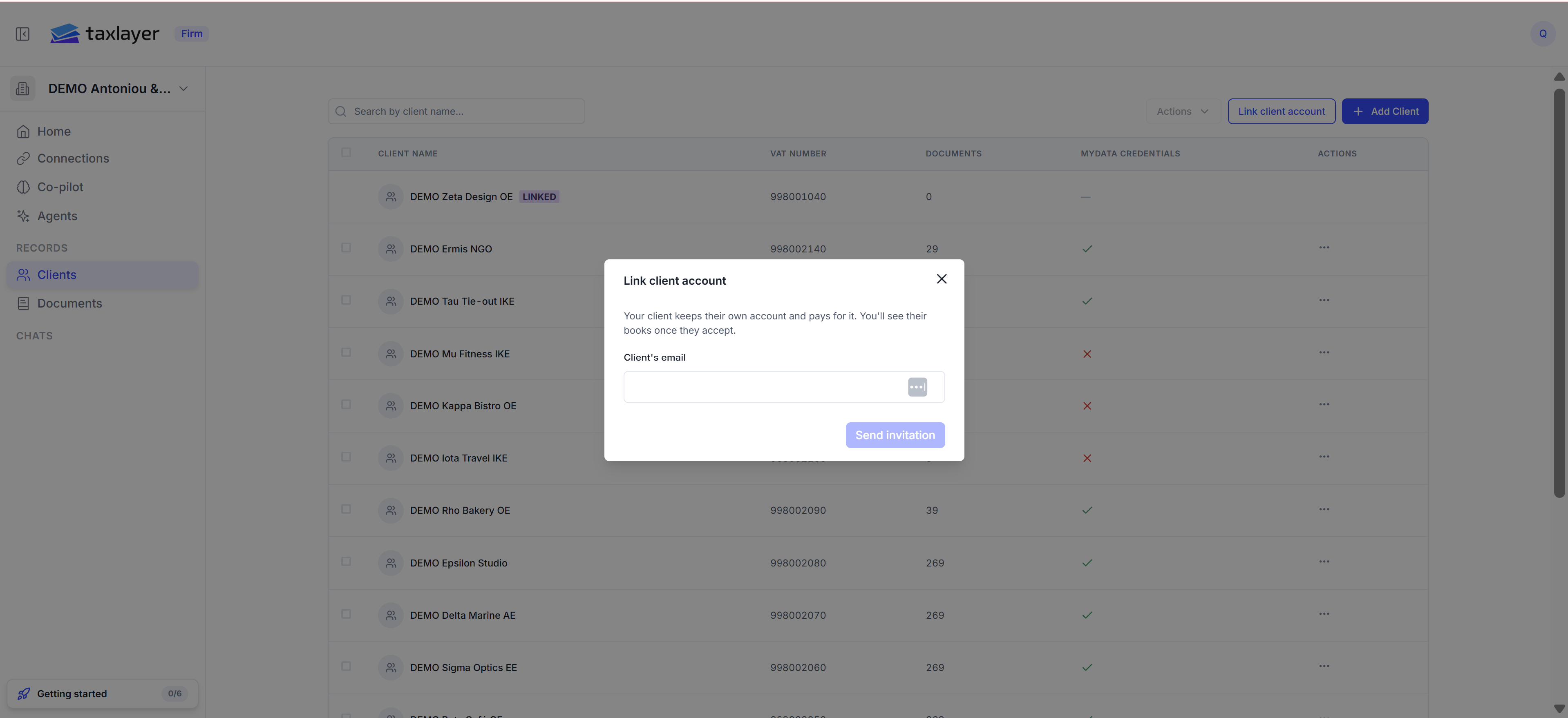
Link client account window on the Clients page
The row appears in your Clients list as Invitation sent. Invitations last 14 days; use Resend from the row menu to renew one, or Cancel invitation.

What the client receives

  • No TaxLayer account yet: an email headed ‹your firm› invited you to TaxLayer with a Create account button. They look up their VAT number, set a name and password, and land in their own Business account — already linked to you.
  • Already has an account: their admins get ‹your firm› asks to access your books. They accept or decline under Organisation › Accountant access. Nothing is shared until they accept.

Once linked

The row shows Linked. Click it to open the client with the badge Linked account. You can see their Home, Income & Expenses, VAT & Tax, Documents, Books & ledgers, Bank Transactions and a Reconcile tab, but you cannot edit their settings — the Home cards say The client hasn’t set their VAT filing frequency yet when that’s the case. Only the client can end the link, from their own Organisation page with Revoke access.

Inviting from a contact

When you add a contact with Invite to TaxLayer switched on, the same invitation is sent to that contact’s email.