

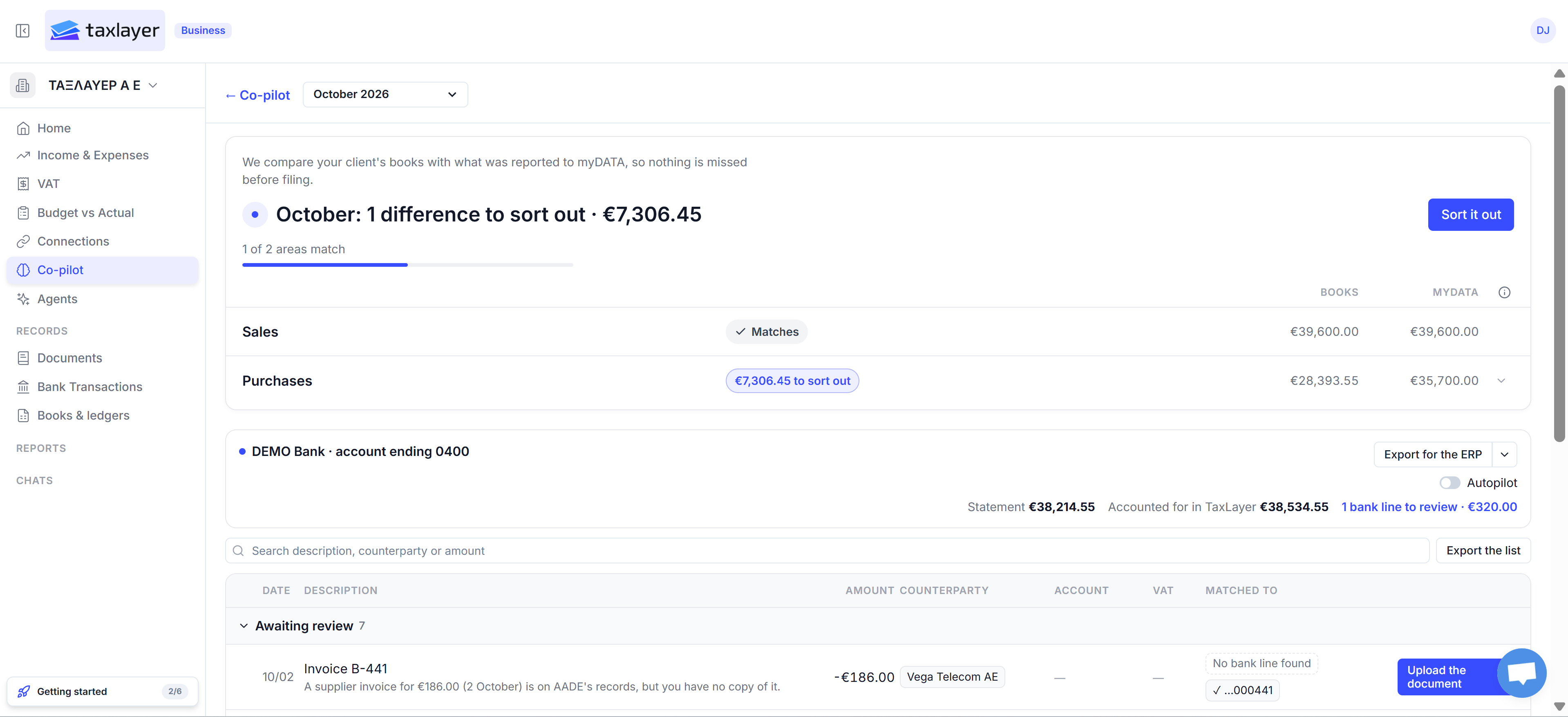
Bank reconciliation: the books-vs-myDATA check at the top, then the bank account and its lines
Books against myDATA
The top card compares your books with what was reported to myDATA for the month, area by area — Sales, Purchases and, where it applies, Payroll — with the Books and myDATA figures side by side. The headline tells you where you stand: October: 1 difference to sort out · €7,306.45, with how many areas match (1 of 2 areas match). Each area shows Matches or the amount still to sort out. Not checked means there’s nothing to compare it against yet. Press Sort it out to go to the rows behind the difference.The bank account
Below it, one card per bank account (DEMO Bank · account ending 0400). If there’s more than one, pick it from the list. The figures on the card:- Statement — the balance on your latest bank statement.
- Accounted for in TaxLayer — what the matched and recorded lines add up to.
- ‹n› bank lines to review · €‹amount› — what’s left. Click it to jump to those lines.
The table
Search by description, counterparty or amount. Columns: Date, Description, Amount, Counterparty, Account, VAT and Matched to. Rows are grouped. Awaiting review is what needs a decision from you; matched and recorded lines sit below it. Each row carries a one-line explanation in plain words, for example A supplier invoice for €186.00 (2 October) is on AADE’s records, but you have no copy of it. Matched to shows two things:- the bank side — the bank line it was paired with, or No bank line found;
- the myDATA side — a tick and the end of the MARK (✓ …000441) if AADE has it.
One action per row
The button on the right is the one thing to do, named for what it does — for example Upload the document when AADE has an invoice you hold no copy of. Firms can tick several rows and act on them together. Click anywhere else on the row to open its detail: what TaxLayer found, the sources (document, ERP, myDATA, bank) side by side field by field, and Show me how you compared them.What TaxLayer matches against
Everything you’ve given it: uploaded documents, myDATA records, and the purchase and sales registers from Books & ledgers. Account codes come from your chart of accounts. The matching rules (exact amounts, date windows) are on Why didn’t it match?.Export
- Export for the ERP — the matched and coded lines as a file your accounting system can import. The arrow next to it picks the format. TaxLayer doesn’t post to your ERP from this screen.
- Export the list — the table as you see it, as a spreadsheet.