

Connect a Gmail or Outlook mailbox and TaxLayer collects the invoice and receipt attachments that arrive in it. Pro and Premium plans.

Connect

  1. Open Connections › Email accounts tab and press Add Account › Gmail or Outlook.
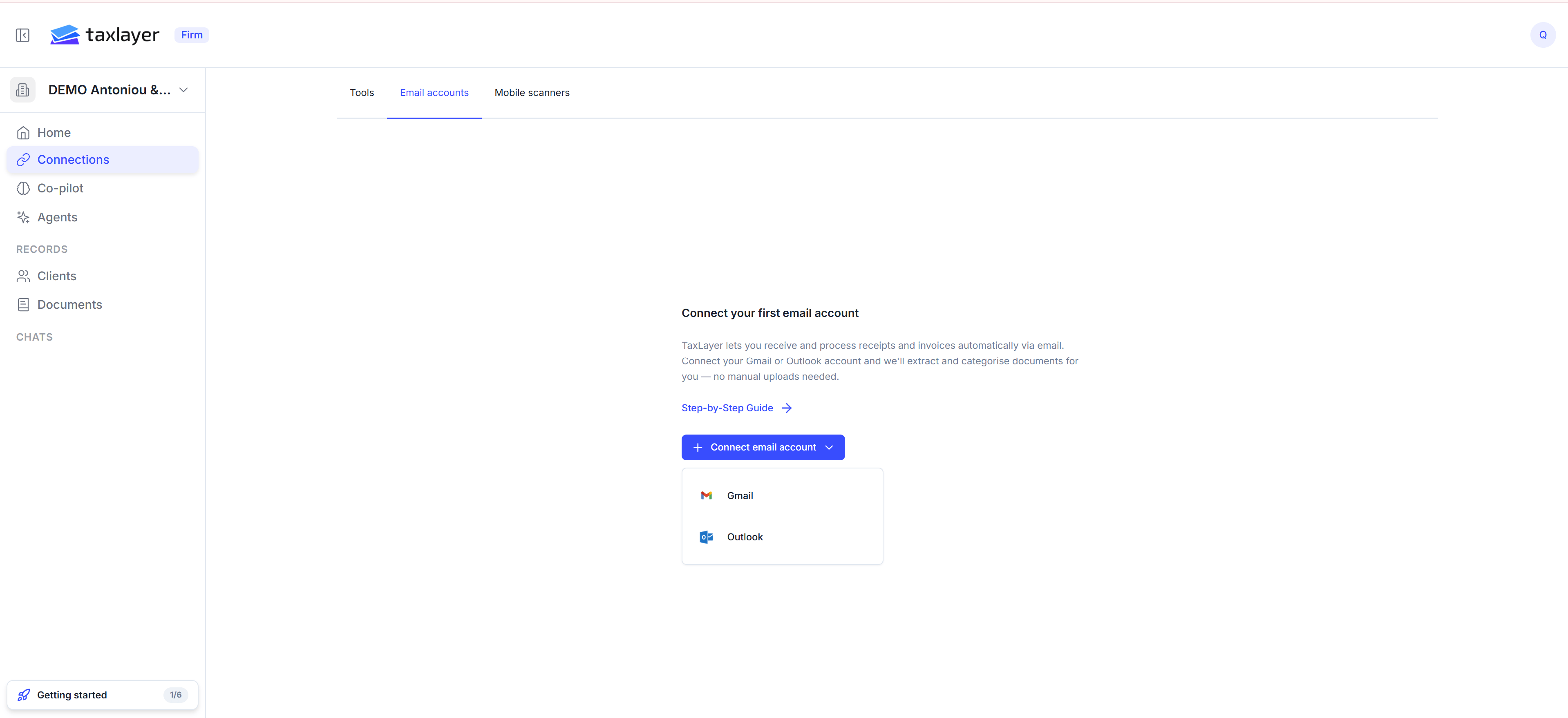
Add Account window with Gmail and Outlook
  1. Sign in on the provider’s page and allow access.
  2. Back in TaxLayer, choose how far back to sync: last 7 days, last 30 days (recommended), 3 months or a year. Press Save.
The account appears as Active with its last sync time.

What is picked up

  • Every 15 minutes TaxLayer checks the mailbox.
  • Only emails with a PDF or image attachment are fetched. Emails with no attachment are never read.
  • Each attachment becomes a document and goes through the usual statuses. Attachments that aren’t financial documents end up as Not financial and stay out of your list.
To decide more carefully which emails to take, set up a Capture agent — it screens senders and subjects before anything is read. See Agents.

Managing

From an account’s row menu: Sync now (fetch straight away), Connect (sign in again for an inactive account), Delete. If your plan drops to Free, inboxes are switched off and stop syncing until you upgrade and reconnect them.