

Load the three files
The first time you open it you see three upload boxes. They are the same boxes as in Books & ledgers — upload once, used everywhere.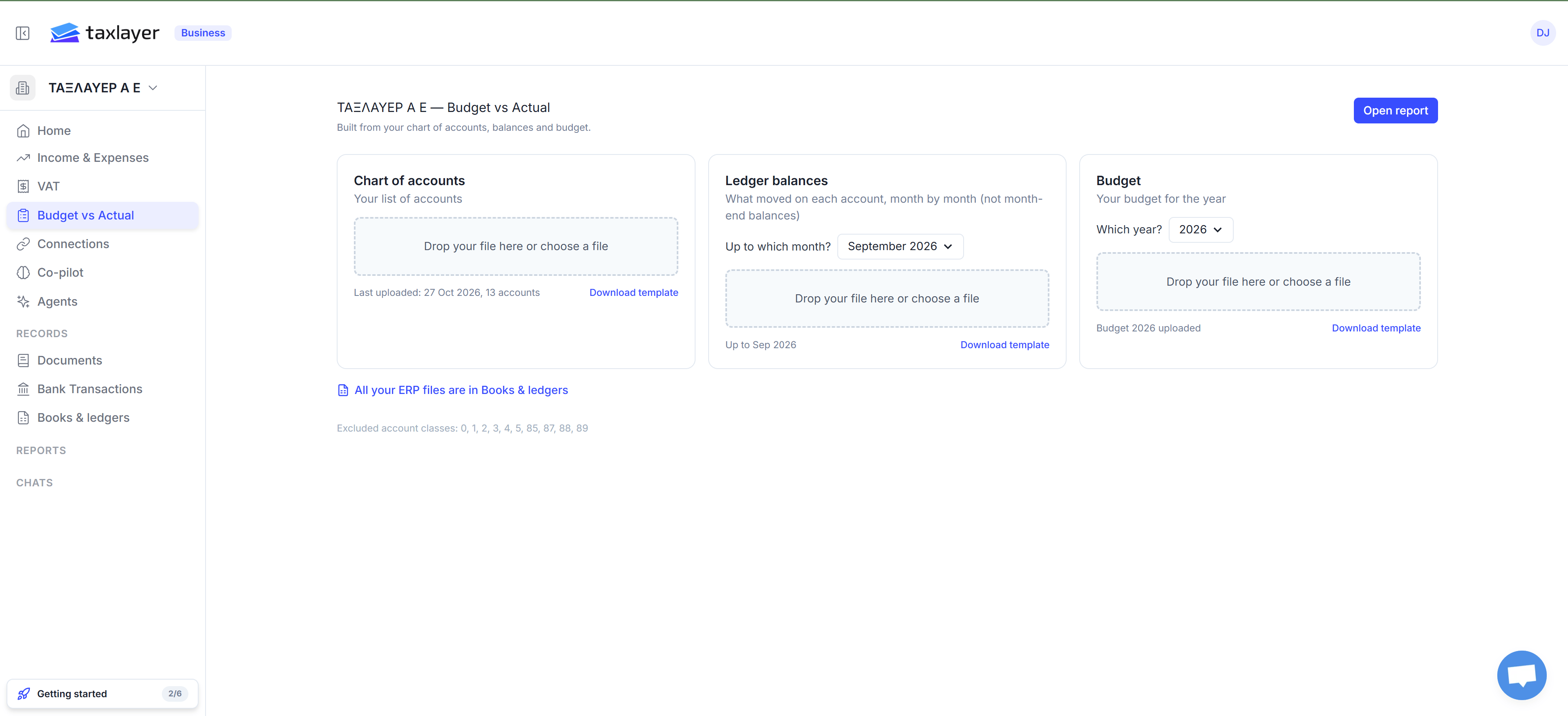
The setup page: chart of accounts, ledger balances and budget
Drop a .xlsx, .xls or .csv (under 10 MB) on a box. TaxLayer asks which sheet, which month the balances run up to, or which year the budget is for, checks every row, and either files it (✓ Balances added up to September 2026) or tells you the first thing wrong (Account code 60.01 appears twice, on rows 14 and 22.). Load the chart first; the other two need it. A new upload replaces the earlier one.
Epsilon’s balance per month export matches the ledger-balances template as it is.
Balance-sheet classes are left out of the report on purpose — the page lists them under Excluded account classes (0, 1, 2, 3, 4, 5, 85, 87, 88, 89). Only income and expense accounts take part.
When all three are in, press Open report.
The report
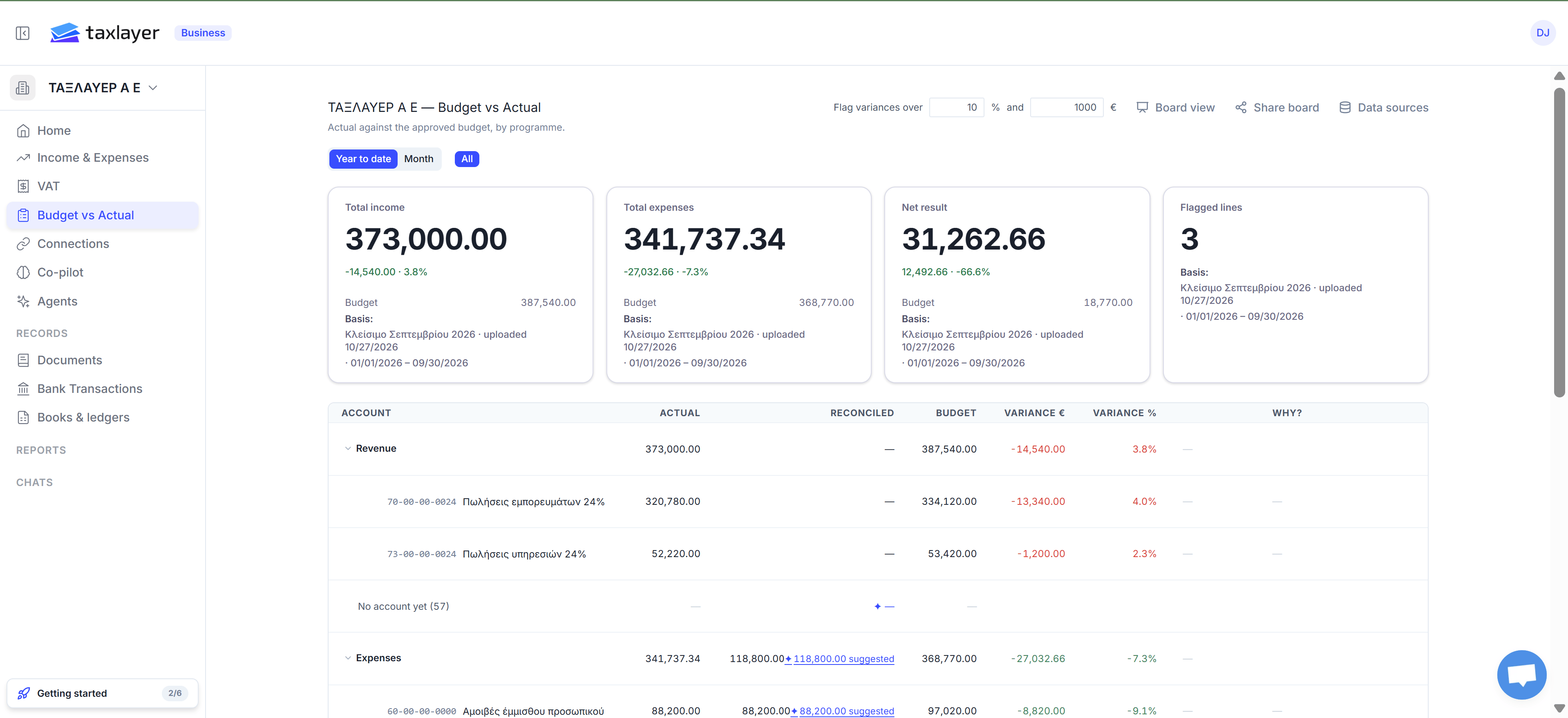
The report: cards, then the account tree with Actual, Reconciled, Budget and the variances
- Year to date, Month or All view. Month has a month picker.
- A programme (cost centre) selector when your chart has them.
- Four cards: Total income, Total expenses, Net result (actual, budget, variance € and %), and Flagged lines. Each card carries a Basis line — which ledger upload the figure comes from, when it was uploaded, and the period it covers — so a board member can see exactly what the number rests on.
- The tree: Class › Category › Sub-Category › Account, with Actual, Reconciled, Budget, Variance €, Variance % and Why?.
The Reconciled column
Actual is what your ledger file says. Reconciled is what TaxLayer can confirm from the sources it holds — bank statements, documents and myDATA — after the bank and balance reconciliations.- A plain figure means the account has been reconciled and this is the confirmed amount.
- ✦ ‹amount› suggested is TaxLayer’s own figure for that account, offered where it has evidence but nobody has confirmed it yet. Click it to see where it comes from.
- — means there is nothing to reconcile against for that account.
What changed
When a new ledger upload changes earlier months, a band appears: 14 accounts changed across 23 month-lines since the previous upload · net €2,140. See the lines shows account, month, was, now, difference — so a restated prior month is never a surprise in the boardroom. Those rows get Prior month restated in Why?.Board view and sharing
Board view is the same report without the app around it, laid out for A4 landscape — use your browser’s Print. You can still switch Year to date / Month / All and change the thresholds there; Back to the report returns you.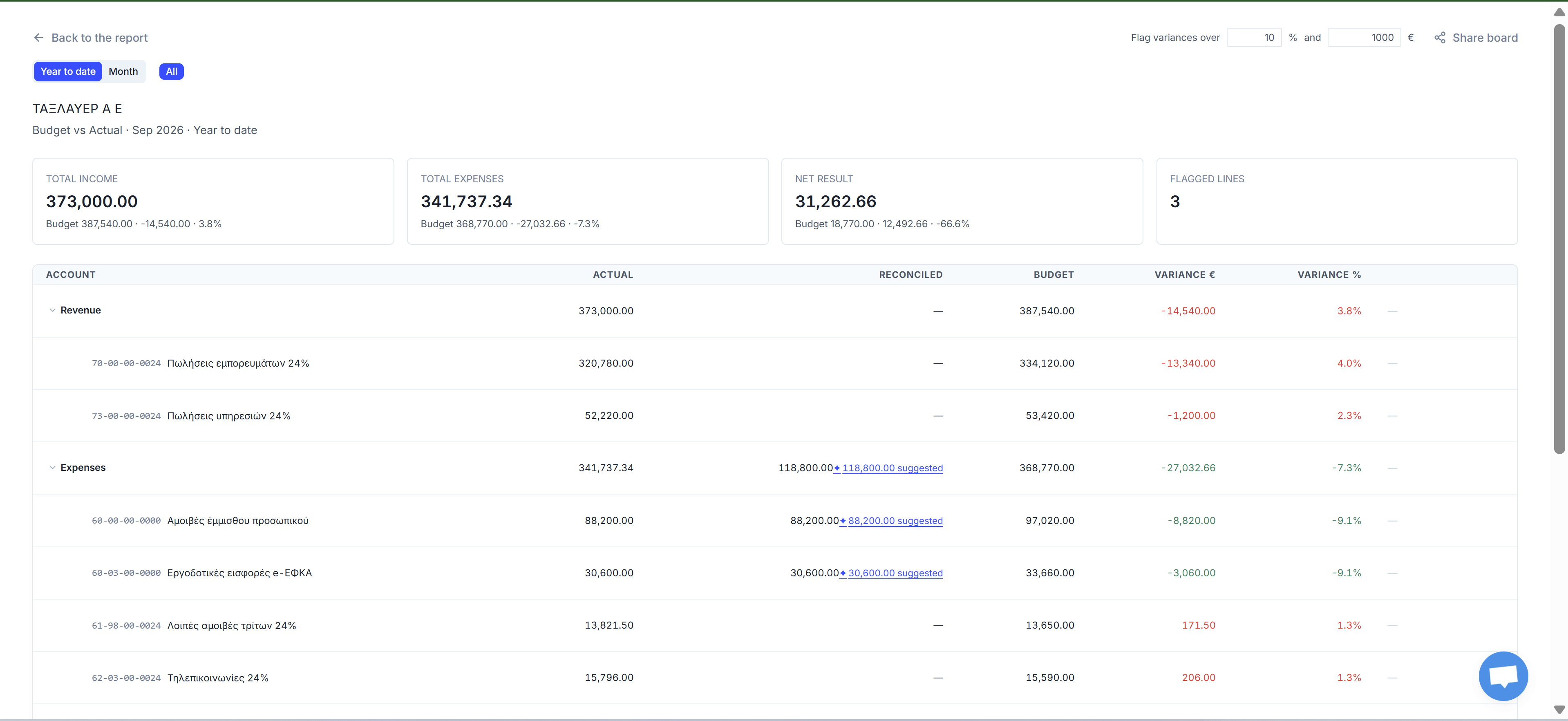
Board view: the report without the app around it