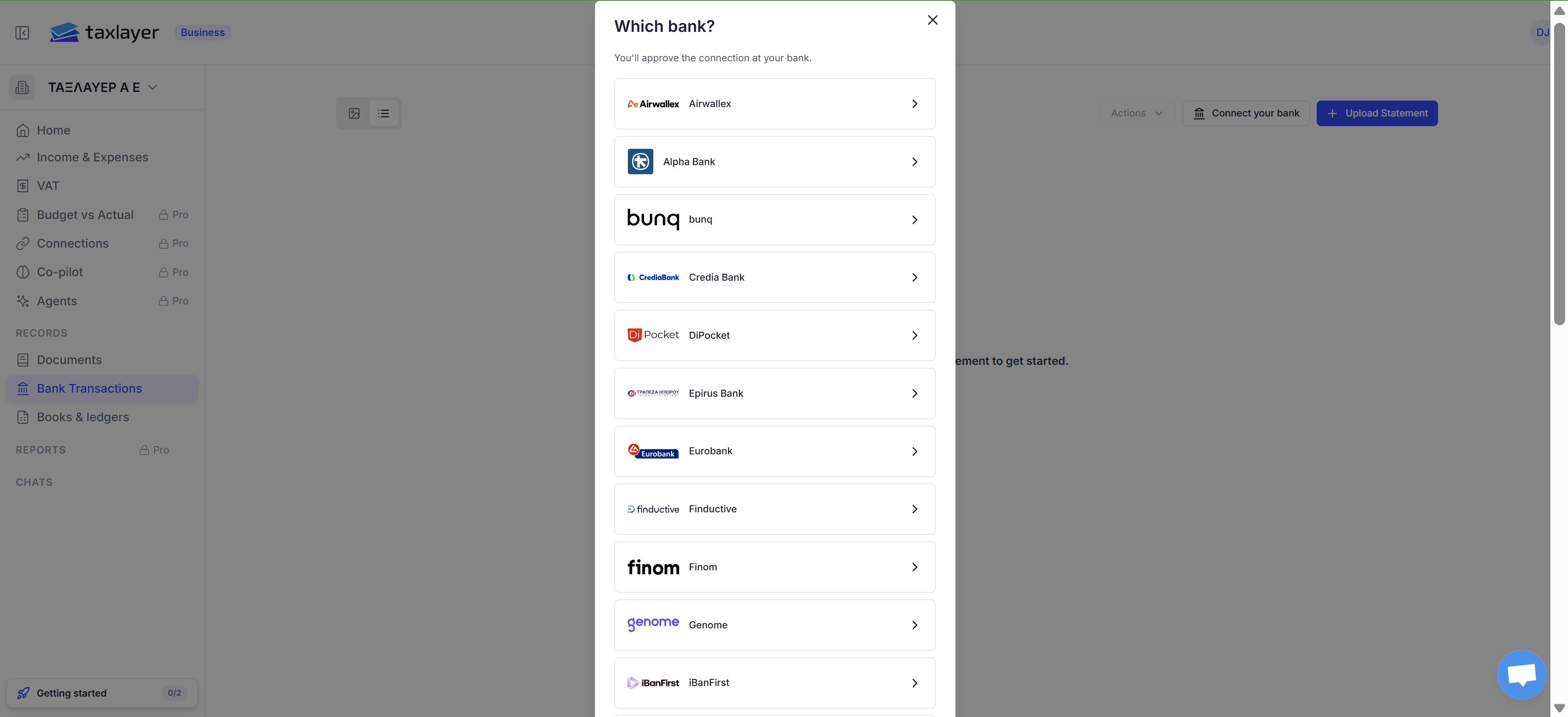

Where to upload
- Business: Bank Transactions in the sidebar › Upload Statement.
- Firm: open the client › Bank Transactions tab › Upload Statement. (There is no firm-wide bank page; each client has its own.)
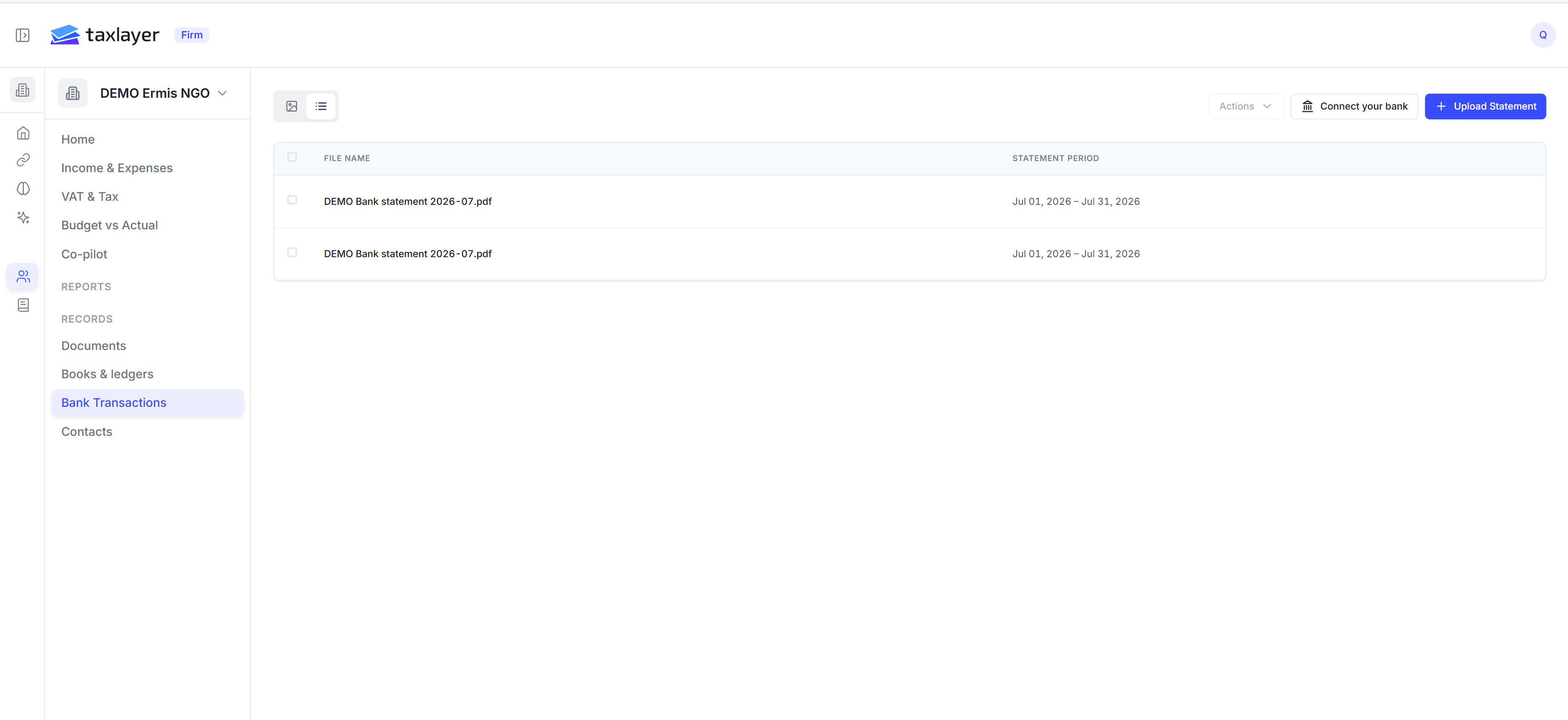
Bank Transactions lists each statement with its period
Uploading
- Drop one or more statements on Drag and drop your bank statements here.
- Firms: pick the client, or leave Let TaxLayer match the client automatically — it matches on the IBAN, ΑΦΜ or account-holder name printed on the statement.
- Press Start AI Parsing.
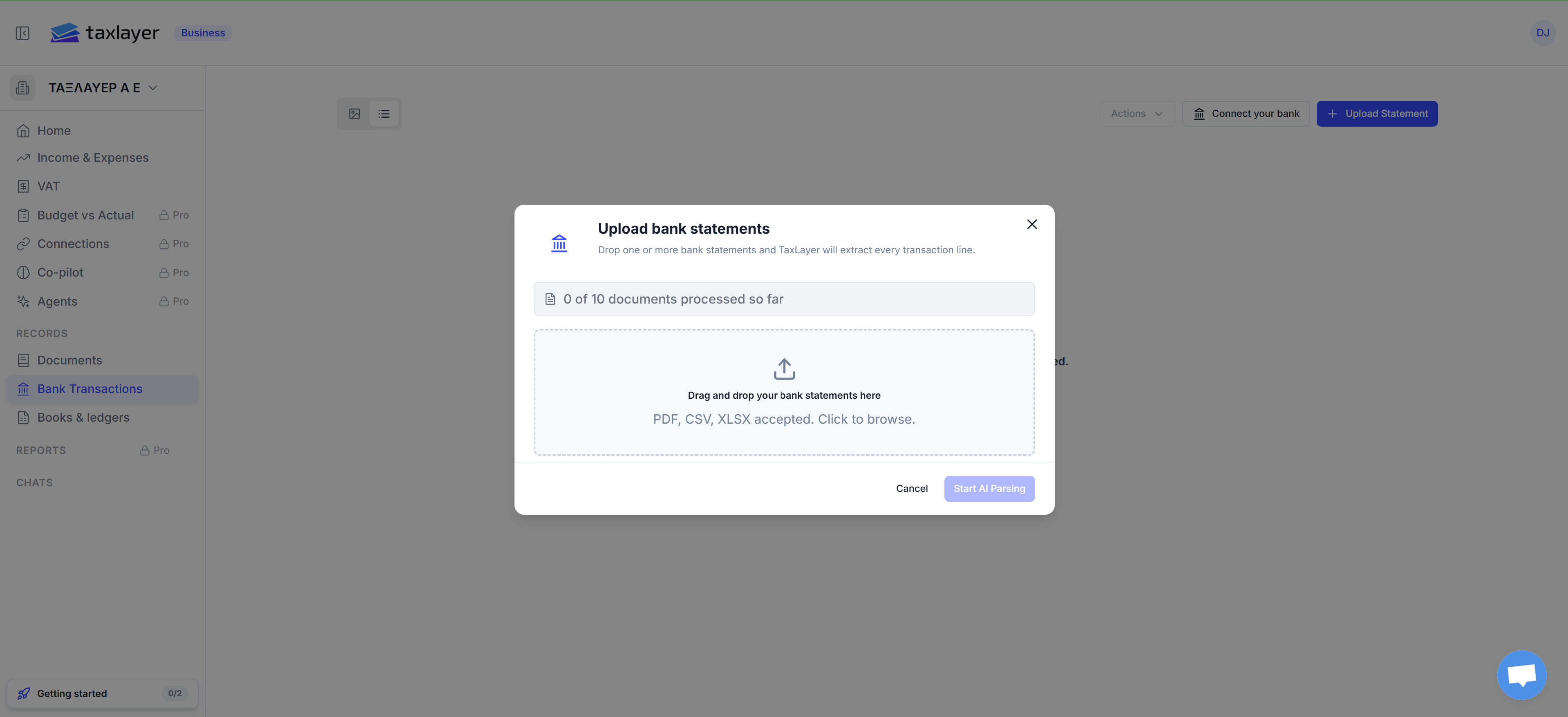
The window also mentions CSV and XLSX. Those are refused — upload the PDF your bank gives you.
What is checked
A statement is Ready when opening balance + transactions = closing balance. If the sum doesn’t reconcile or a field is missing, it shows Review needed and the Errors tab says what’s wrong.What is this account used for?
The first time TaxLayer sees a new IBAN it asks what the account is for — main operating account, payroll, tax payments, company card and so on. Tick anything that applies or Skip for now. This helps matching; it’s optional. You can change it later with Edit purpose on the Bank Transactions page.Overlapping statements
If a statement repeats transactions from one you already uploaded, TaxLayer treats them as the same payments so nothing is counted twice. On the Pro plan you may be asked to confirm; Confirm (recommended) is the right answer unless they really are different payments.Connect your bank (live feed)
Next to Upload Statement is Connect your bank. It opens a Which bank? list — Alpha Bank, Eurobank, Epirus Bank, Credia Bank and a range of fintech accounts — and you approve the read-only connection on the bank’s own site. Once connected, transactions arrive by themselves instead of from statements.